
Taking regular backups of your website is one of the most important habits you can build. Even if Host Media retains server-side backups, having your own local copy gives you complete control, no waiting, no support ticket, no dependency on anyone else. This guide covers both a full account backup and targeted file/database backups via cPanel.
Before you start: You will need your cPanel username and password. If you have forgotten these, you can find them in the Host Media Client Area under your hosting package details.
Option 1: Full account backup (recommended)
A full backup captures everything in your hosting account, files, databases, email accounts, forwarders, and settings, in a single compressed archive. This is the best option if you want a complete snapshot before making major changes.
- Log in to cPanel at
https://yourdomain.com/cpanel(or via your cPanel login guide). - Scroll to the Files section and click Backup Wizard.
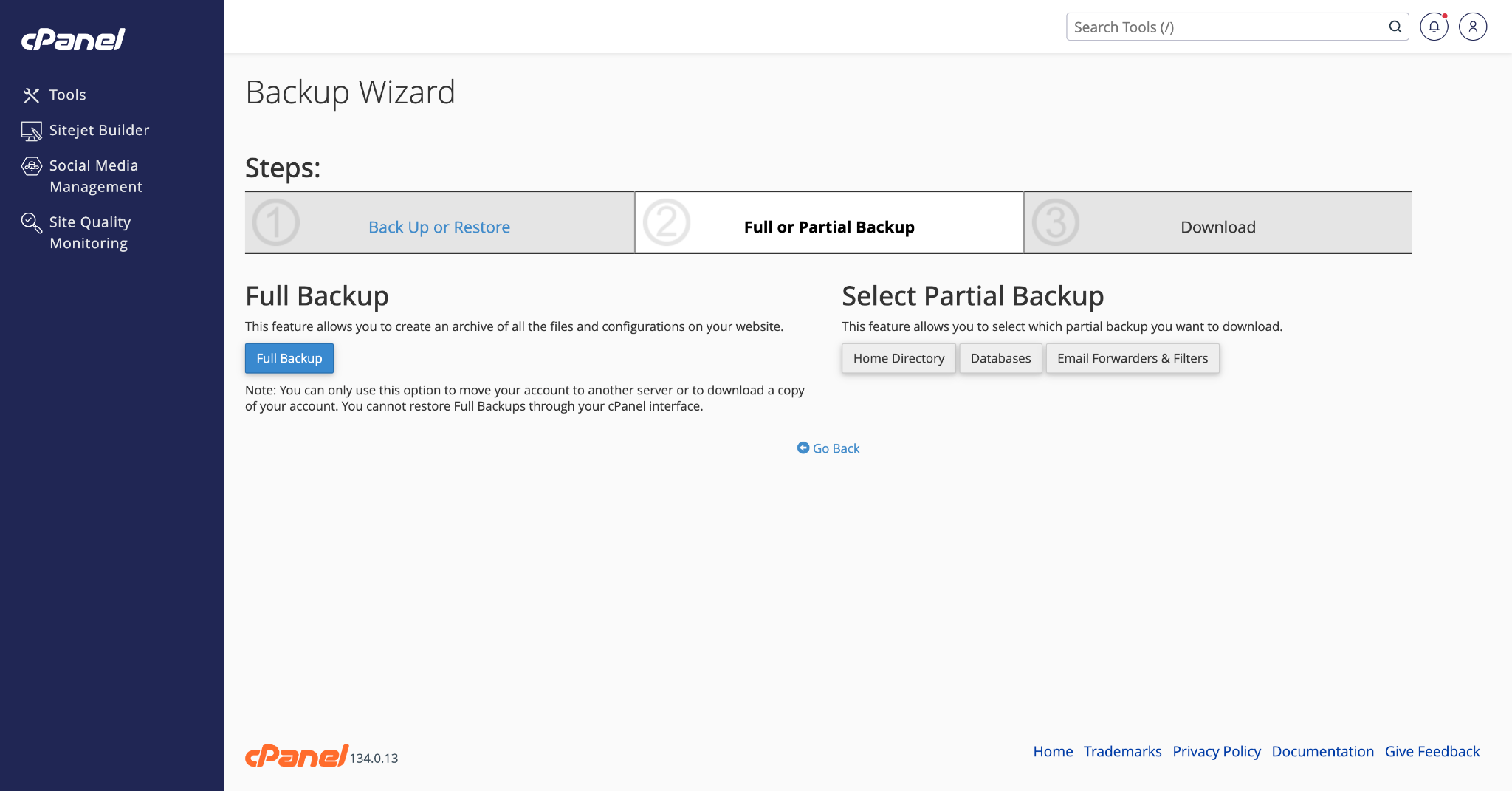
- Click Back Up, then select Full Backup.
- Under Backup Destination, select Home Directory. This saves the backup file to your hosting account's root, where you can then download it.
- Enter your email address in the Email Address field, cPanel will email you when the backup is ready.
- Click Generate Backup.
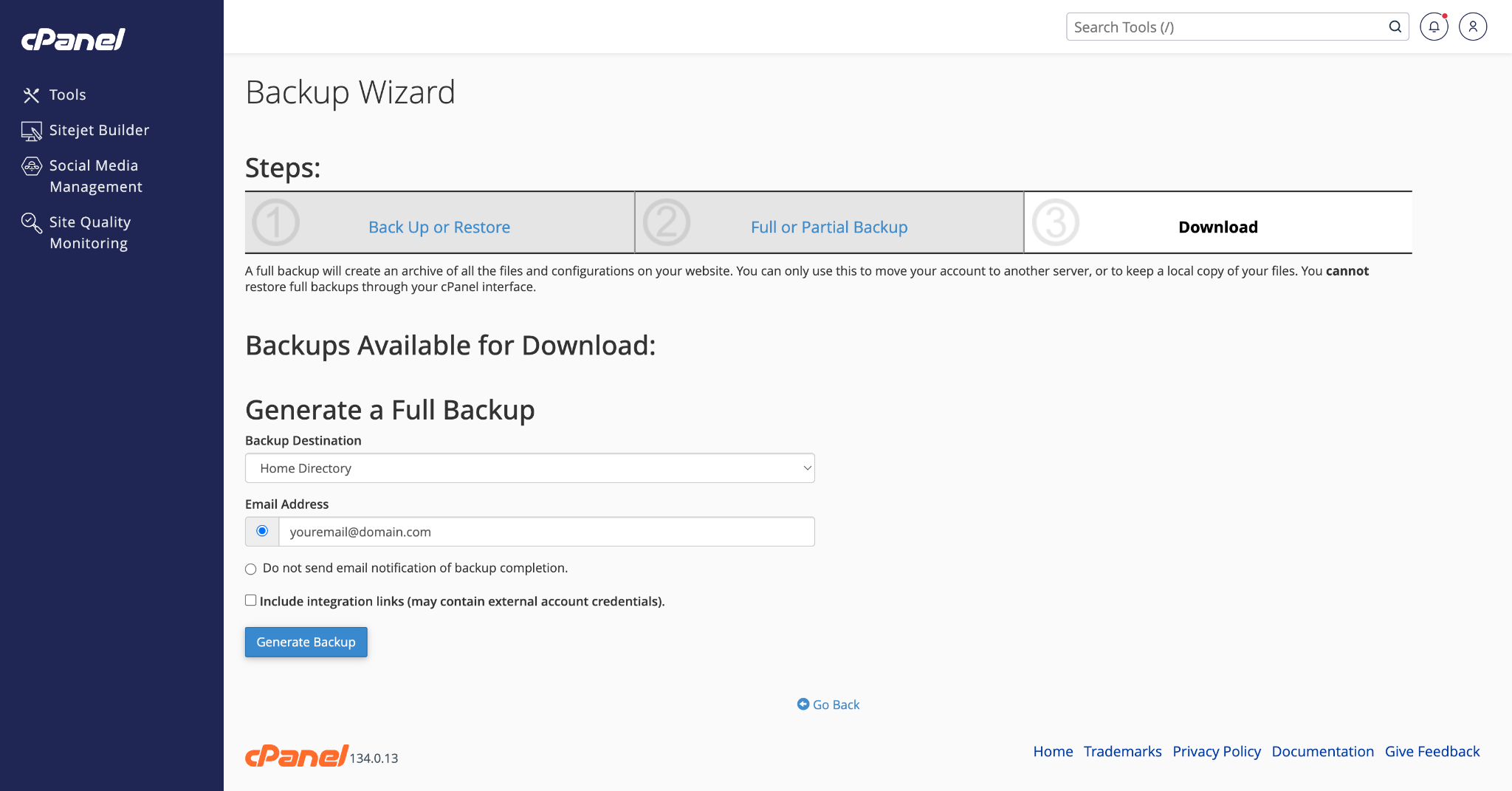
Once you receive the confirmation email, return to the Backup Wizard, click Back Up → Full Backup, and scroll down to find your completed backup file listed under Backups Available for Download. Click the filename to download it to your computer.
File size note: Full backups can be large for accounts with lots of content. If your account has several gigabytes of files, the backup may take 10–30 minutes to generate. You can leave the page — cPanel generates it in the background and emails you when done.
Option 2: Partial backup - files only
If you only need to back up your website files (not databases or email), use the Home Directory backup:
- In cPanel, go to Files → Backup Wizard.
- Click Back Up, then select Home Directory under Partial Backups.
- The download will begin immediately, save the
.tar.gzfile to your computer.
Option 3: Partial backup - databases only
- In cPanel, go to Files → Backup Wizard → Back Up → MySQL Databases.
- A list of your databases will appear. Click the name of the database you want to download.
- The
.sql.gzfile will download directly to your computer.
How to restore from a backup
To restore files or a database from a backup you previously downloaded:
- In cPanel, go to Files → Backup Wizard → Restore.
- Select what you want to restore: Home Directory, MySQL Database, Email Forwarders, or Email Filters.
- Click Browse, locate the backup file on your computer, and click Upload.
- cPanel will process the restore and display a confirmation screen when complete.
Restoring a full backup: Full backups (
.tar.gzfiles) cannot be restored through the Backup Wizard, they must be restored by our support team. If you need to restore a full account backup, please open a support ticket and attach or link to your backup file.
How often should I back up?
As a general rule: back up before any significant change (plugin updates, theme changes, code deployments) and on a regular schedule regardless (especially key data such as your databases). For most sites, a weekly manual backup downloaded locally is a sensible minimum. High-traffic or frequently updated sites should back up daily.